A cable trunk is used to manage cable sections, closures and terminators. The cable trunk itself has no geometry. Any cable sections, closures and terminators can be assigned to a cable trunk.
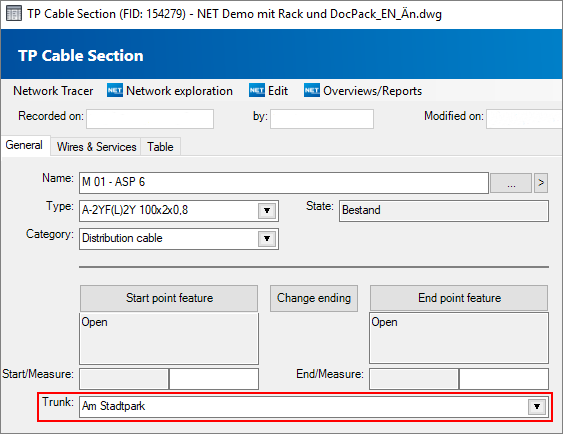
In NET Engineering, users have the option of defining cable traces themselves. The form is opened by double-clicking in the “Trunk” field in the Cable Section, Closure or Terminator form, or in Industry Model Explorer > TP Network > TP Cable Trunk.
Tabs
| Attribute | Description |
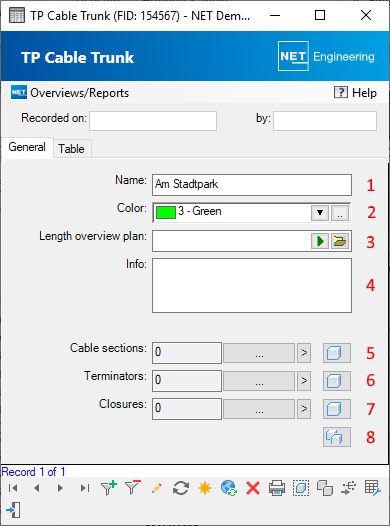
| Name | Enter the name of the cable trunk. (1) |
| Color | The color for displaying the cable trunk in the graphic can be selected from a drop-down list with defined colors or a color palette. (2) |
| Length overview plan | A length overview plan can be assigned. (3) |
| Information | Information on the cable trunk can be specified. (4) |
| Cable sections | The number of cable sections assigned to the current cable trunk is displayed. Clicking on the  button opens the line form for the associated cable sections or, with button opens the line form for the associated cable sections or, with  , for all cable trunk in the filter. The highlight button , for all cable trunk in the filter. The highlight button  highlights all the cable sections assigned to the cable trunk in the graphic. (5) highlights all the cable sections assigned to the cable trunk in the graphic. (5) |
| Terminators | The number of terminators assigned to the current cable trunk is displayed. Clicking on the button opens the point form for the associated terminators or, with , for all cable trunk in the filter. The highlight button highlights all the terminators assigned to the cable trunk in the graphic. (6) |
| Closures | The number of closures assigned to the current cable trunk is displayed. Clicking on the button opens the point form for the associated closures or, with , for all cable trunk in the filter. The highlight button highlights all the closures assigned to the cable trunk in the graphic. (7) |
 |
The highlight button can be used to highlight all objects assigned to the cable trunk at the same time. (8) |
Menu items
With the menu "Overviews/Reports" the duct route can be output in tabular form in CSV or Excel format. In addition, schemaplans can be opened in grouped and detailed form.